How to automate your Google review replies, with your personal touch
Let Zapier write a reply to every new Google review that sounds like you wrote it, then post it with one click from you.

André Ferreira
· 8 min read
- beginner
- 45 min setup
≈ 19.99 USDrunning cost
Checked . Zapier Professional starting tier with 750 tasks, billed yearly ($29.99 billed monthly), with a 14-day free trial. Five or six tasks per review on an Advanced AI model (AI 3, approval 1, Formatter 0 or 1, Create Reply 1), so about 125 to 150 reviews a month. The free fallback (pasting the prompt into a chat app) costs nothing.- Zapier
- Google Business Profile
- ChatGPT
- Claude
- Gemini
At a glance
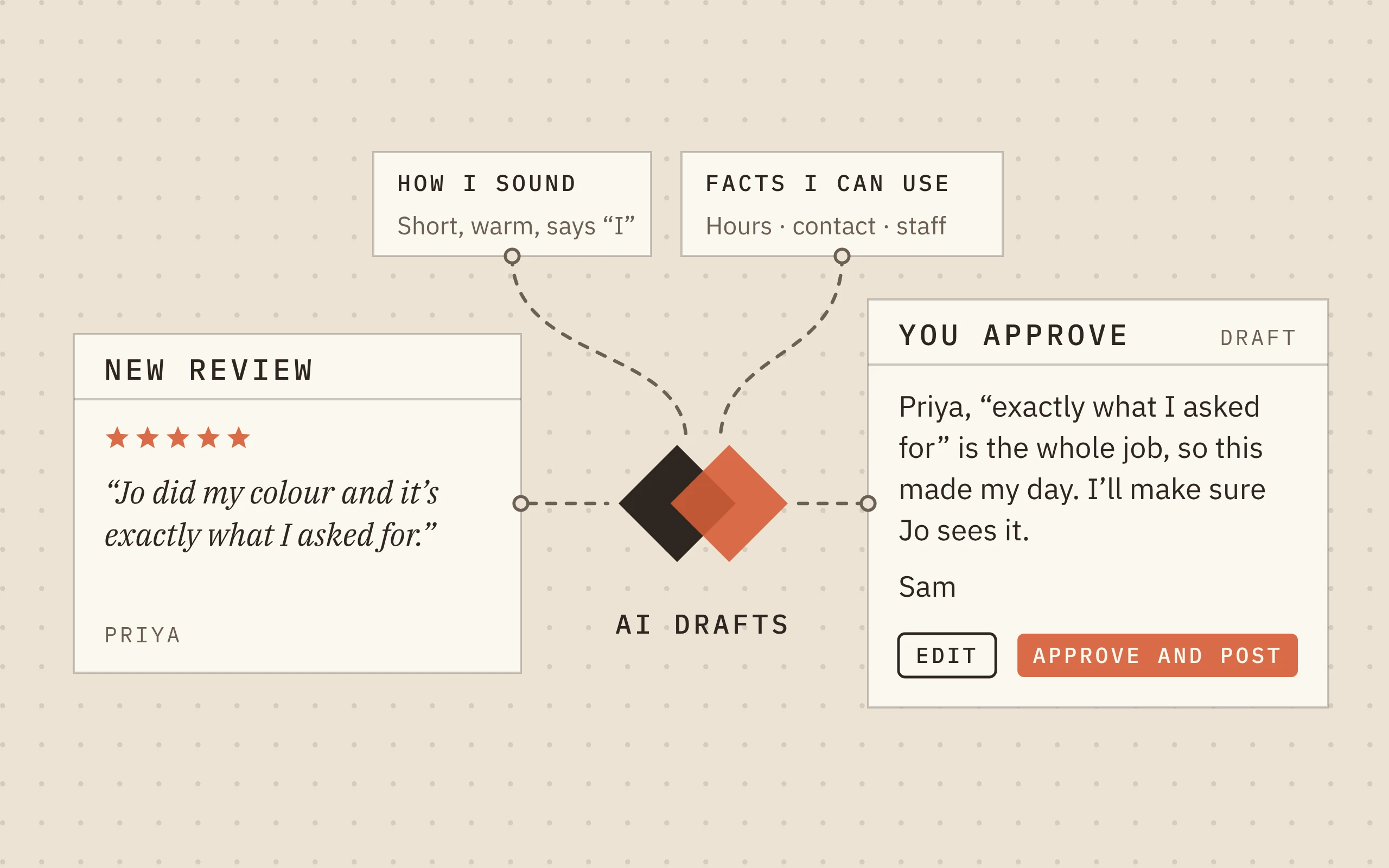
Every new Google review gets a reply that sounds like you wrote it. You approve or tweak it, and Zapier posts it.
What you’ll do
- Write down how you sound, with a few of your real replies.
- List the facts it may use, and when to hand a review to you.
- Try it on five pretend reviews in your chat app.
- Automate it in Zapier, with one click from you before anything posts.
Good to know
- The AI and approval steps need Zapier's paid plan, from $19.99 a month billed yearly, after a 14-day free trial. That covers about 125 reviews a month.
- Your Google Business Profile must be verified for at least 60 days and list a website.
How it works
The automation does the writing and the posting. You keep the personal touch. When someone leaves a Google review, Zapier passes it to an AI step along with two notes you write once: how you sound, and the facts it may use. The AI writes a reply and answers one question: does this one need me? Zapier sends you the reply to approve, and when you click approve, it posts it under the review.
That question tells you where to slow down. Praise gets a reply you can approve as is. A complaint, a question it can't answer or anything about money gets a holding reply and a note saying why it's yours, so you can rewrite it before it goes out.
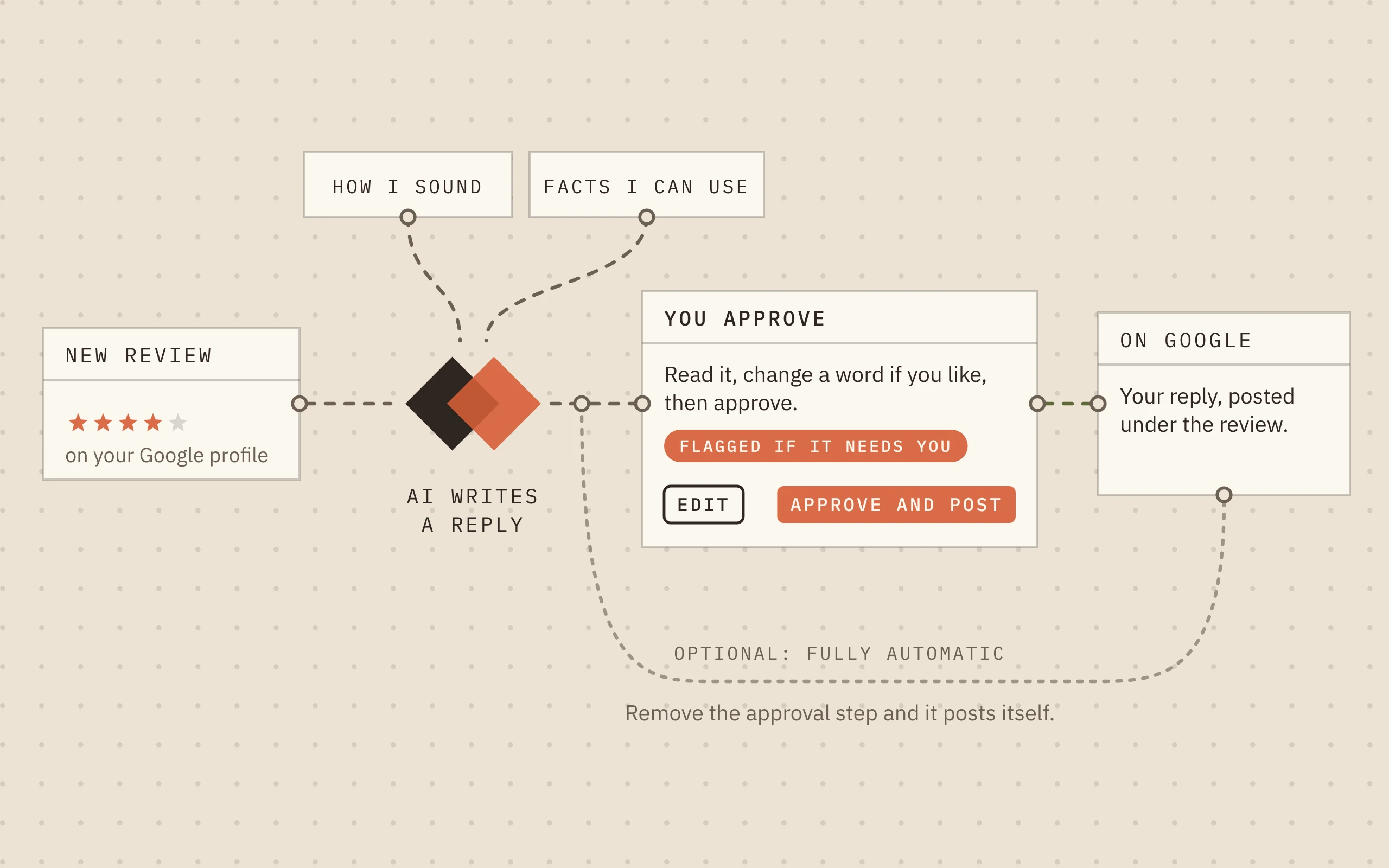
We'll use Zapier. Make and n8n can run this kind of automation too, and the prompt works there as well. Or skip the automation and paste the prompt and the review into ChatGPT, Claude or Gemini when one comes in.
Before you start
- A Google Business Profile you're Owner or Manager of, verified for at least 60 days, with a website listed access
0 USD, checked . Google Business Profile is free.
- [1] How to get started with Google Business Profile on Zapier · Prerequisites; Triggers
- Zapier Professional, from $19.99 a month billed yearly ($29.99 monthly), with a 14-day free trial. Each review uses five or six of its 750 monthly tasks. tool
19.99 USD, checked . Starting tier with 750 tasks, billed yearly; $29.99 billed monthly. Five or six tasks per review: AI step on an Advanced model (3), approval (1), Formatter (0 or 1) and Create Reply (1). Triggers don't count. About 125 to 150 reviews a month.
- [5] Zapier pricing · Professional plan; FAQ
- [6] Zapier pricing: plans and tasks explained · Professional plan
- [16] AI by Zapier model tier pricing · Model tiers; available models by tier; Bring Your Own Key
- [13] Request approval with Human in the Loop · Configure your Request Approval action; Additional info; Limitations
- Three to five replies you've written to reviews input
- [10] Prompting best practices · Use examples effectively
- Your basics: hours, how customers reach you, and what you offer when something goes wrong input
Step 1Add your personal touch
You've seen the AI version: the same gushing thank-you every time, and nothing about what the customer said. Google's own advice is the opposite: don't send everyone the same thank-you, and answer their actual point.
Rules help a little. Examples help a lot: AI copies the tone of a few real replies far better than it follows a description, and Anthropic suggests three to five. Pick a happy one, a complaint and a short one. No replies yet? Write three the way you'd say them at the counter.
Copy this and fill in the brackets:
- Expected result
- The first half of your prompt, in your own words.
You write replies to Google reviews for [business name], a [type of business] in [town].
Write as [your first name], the owner, the way I talk to customers in person.

HOW I SOUND
- [Short and warm. Plain words. A bit of humour when it fits.]
- Say "[I or we]", never the other.
- Sign off: [- your first name, or nothing]

NEVER
- Open with a thank-you line. Start with something they actually said.
- Use: valued customer, delighted, thrilled, rest assured, we strive, sorry for any inconvenience.
- Use more than one exclamation mark, emojis or long dashes.
- Offer a discount or a deal.

LENGTH
Stars only or a few words: one sentence. A longer review: two to four sentences. Never over 70 words.

MY REAL REPLIES (copy how they sound, not what they say)
<example>[a reply to a happy review]</example>
<example>[a reply to a complaint]</example>
<example>[a reply to a short or stars-only review]</example>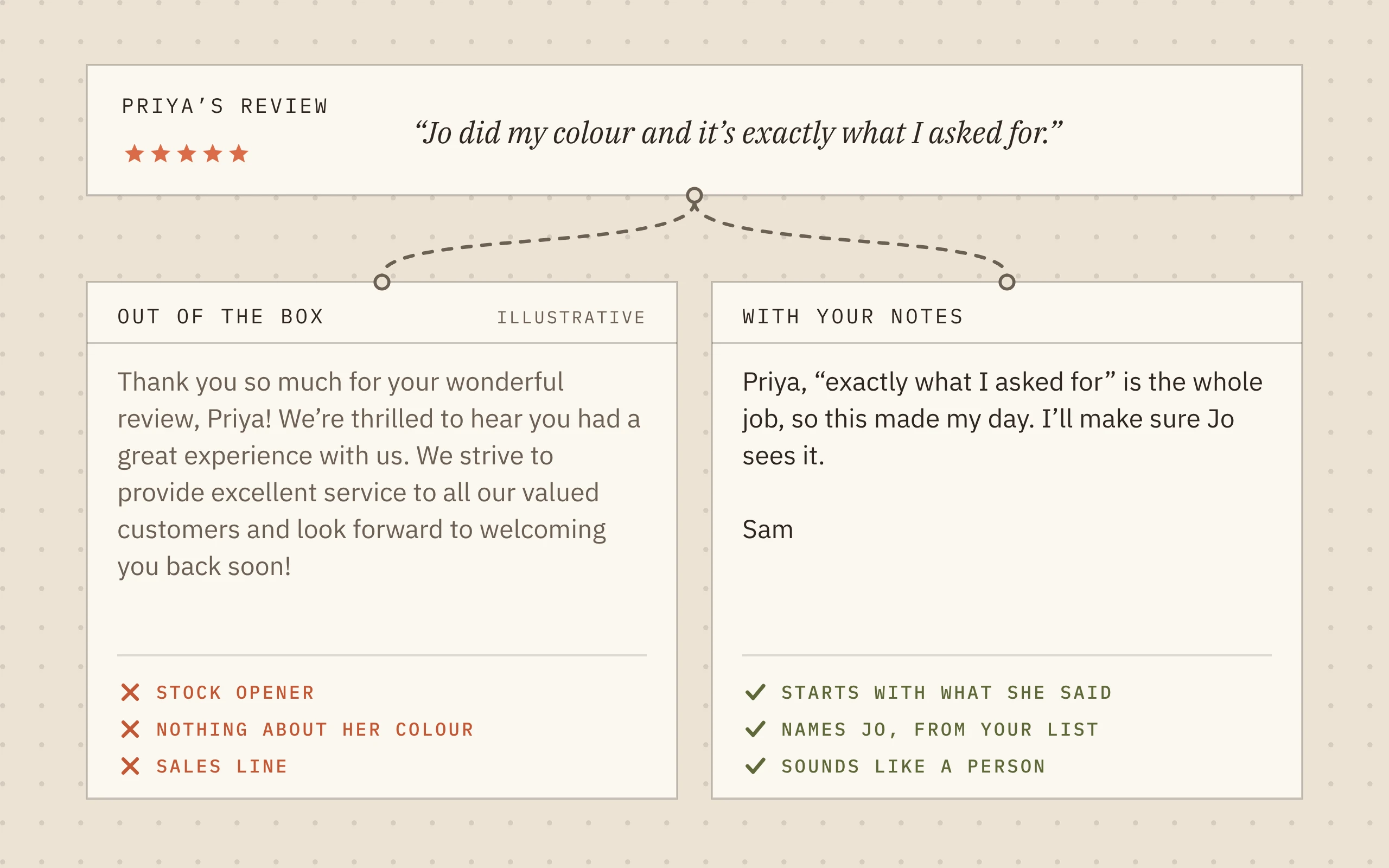
Step 2Give it facts, and permission not to know
AI fills gaps with whatever sounds likely, so a question about a treatment you never mentioned can get a price you've never charged. AI makers' own advice has two fixes: use only the facts given, and allow "I don't know".
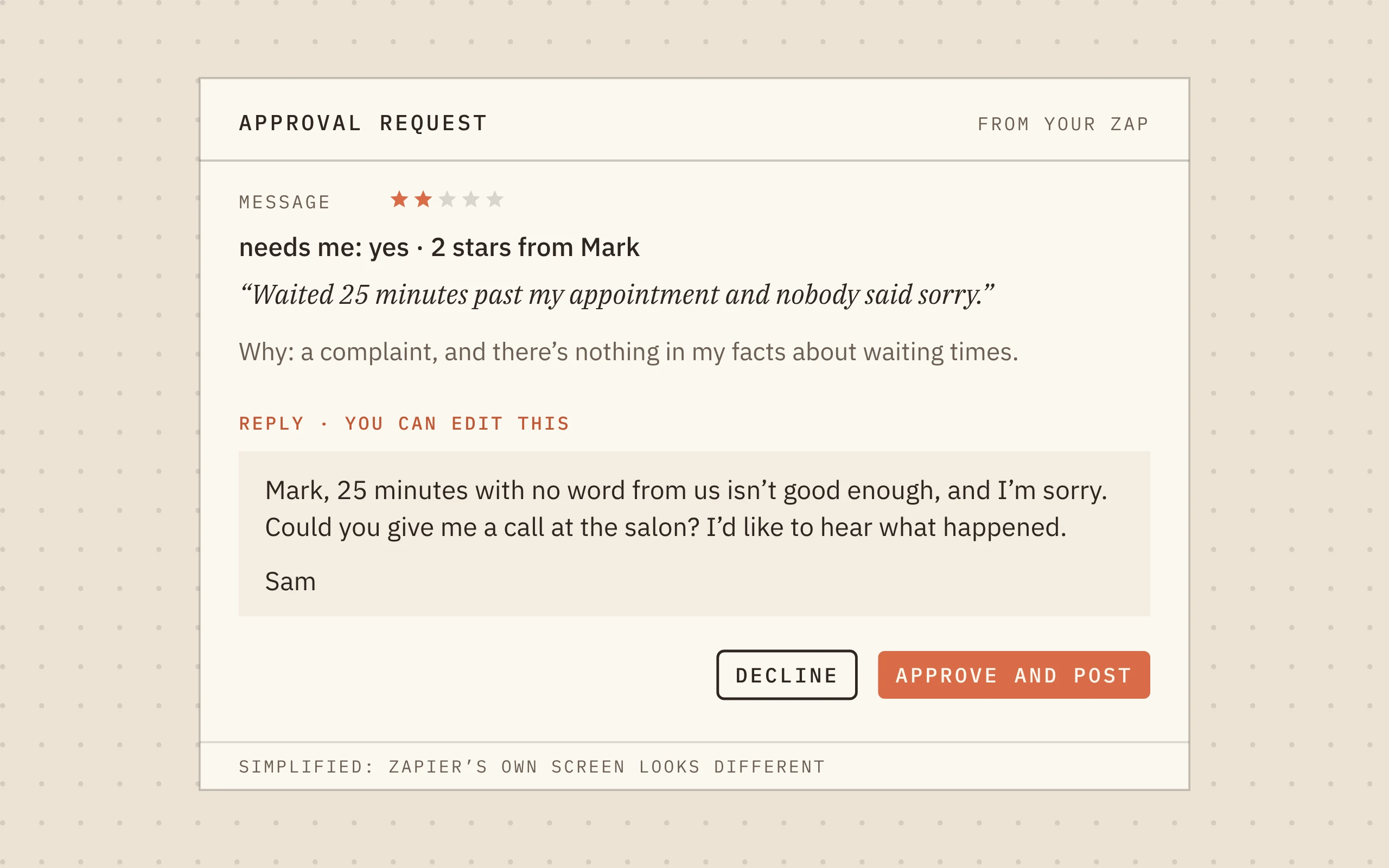
The second matters most. "Drop me a line and I'll check" is a good reply; a confident wrong answer under your name isn't. So when it isn't sure, it hands the review to you with needs_me: yes.
Add this under step 1:
- Expected result
- One complete prompt, ready for a chat app or Zapier.
FACTS YOU CAN USE (nothing else)
- Hours: [your hours]
- If something went wrong, people can reach me at: [phone or email]
- [What you offer when someone's unhappy, e.g. a free fix within 7 days]
- Staff you can mention by first name: [names]

IF YOU DON'T KNOW
- Use only these facts and what the reviewer wrote. Don't add details about their visit.
- Never promise a refund, discount, date or fix that isn't in the facts.
- Never mention anything private, like what they paid, booked or told you.
- If the review is a complaint, asks something the facts don't answer, or mentions money, health or safety: write a short, kind reply inviting them to get in touch, and set needs_me to yes.
- If you're unsure, set needs_me to yes. Not knowing is fine.

REVIEW
Name: [reviewer name]
Stars: [star rating]
Review: [review text]

Give me three things:
reply: the reply, ready to post
needs_me: yes or no
why: one line, or "fine as is"
Step 3Try it on five pretend reviews
Rehearse in the chat app you already use. Paste the prompt, put one of these in the REVIEW part, and read what comes back. They're for a hair salon, so swap in your own trade.
The first two should be ready to send as they are, with needs_me: no. The last three should say yes, with no price, discount or time you didn't give it. If the voice is off, fix the prompt, not the reply, and run all five again.
- Expected result
- Five drafts you'd send, with the right three flagged.
1. 5 stars. "Jo did my colour and it's exactly what I asked for."
2. 5 stars. No text.
3. 2 stars. "Waited 25 minutes past my appointment and nobody said sorry."
4. 4 stars. "Lovely cut. Do you do keratin treatments, and how much?"
5. 1 star. "Overpriced. Never again."
Step 4Automate it in Zapier
In Zapier, create a Zap with these five steps. Each one lists only the settings you need to change.
Google Business Profile: New Review
Account and location: yours. One Zap per location.
Click Test trigger to pull in a recent review.
AI by Zapier: Analyze and Return Data
Prompt: yours, with Reviewer Name, Star Rating and Comment in the REVIEW part.
Output fields: reply, needs_me, why.
Model: Advanced, Auto. Standard costs fewer tasks but may be too weak to sound like you. New steps start on Premium, which is stronger still and uses the most tasks.
Human in the Loop: Request Approval
Content to review: reply. Let reviewer edit content: Yes.
Message: needs_me, the stars, the review and why.
Reviewer: you, by email. Approve button: Approve and post.
If you decline: Stop run.
Timeout: 3 days, then End run. Reminder: after 1 day.
Formatter by Zapier: Text, Default Value
Input: Edited Content reply, from the approval step.
Default value: reply, from the AI step.
The edited field may be empty if you approve without changes. This step posts your edit if there is one, and the AI's reply if not.
Google Business Profile: Create Reply
Review Name: Name, from the New Review step.
Your Reply: the Formatter result.
Test each step, then publish. Testing Create Reply posts a real reply, so use a review you're ready to answer. Testing the approval step doesn't send an email; the first one comes with your next real review.
- Expected result
- A published Zap that asks you to approve a reply for every new review.
Step 5Approve your first real reply
When a review comes in, Zapier emails you an approval request. Open the link, log in to Zapier, and check the reply against the list below. Click Edit to change a word, then Approve and post. If you haven't answered after a day, Zapier reminds you. After three days the request expires and nothing posts.
Google checks every reply before it appears, usually within ten minutes, occasionally up to 30 days. You can still edit or delete it later in your Business Profile, under Read reviews.
- Expected result
- Your reply under the review, posted as your business, without copying anything.
Check it works
Going fully automatic
Once you're approving replies without changing them, you can take yourself out of the loop. Delete the Request Approval and Formatter steps, and map reply from the AI step straight into Create Reply. Every new review then gets a reply within minutes, with nobody checking it first.
Not ready to go all the way? Keep the approval step for the reviews that need you, with Paths by Zapier, included in the same plan:
Path A: only if needs_me is no and the rating is four or five stars (check whether your test review shows it as 5 or FIVE). Create Reply straight away, with reply from the AI step.
Path B: everything else goes through the approval step, as above.
Either way, skim your Zap history now and then.
Troubleshooting
It still sounds like AI.
- Cause
- Rules alone don't carry a voice.
- Fix
- Add more real replies. Or show your chat app three of yours and three of its, ask what's different, and add that to HOW I SOUND.
- [10] Prompting best practices · Use examples effectively
It made something up.
- Cause
- That fact wasn't in the list.
- Fix
- Add it to FACTS, or add the topic to the needs_me rule.
- [9] Reduce hallucinations · Allow Claude to say I don't know; Restrict to provided information
No approval request arrived.
- Cause
- The Zap is off, a connection failed, or you've used this month's tasks.
- Fix
- Check the Zap is published and Zap history for errors, that the approval step sends to your email, and that your profile is verified, 60+ days old and lists a website. Out of tasks? Zaps pause until next month unless pay-per-task billing is on.
- [1] How to get started with Google Business Profile on Zapier · Prerequisites; Triggers
- [13] Request approval with Human in the Loop · Configure your Request Approval action; Additional info; Limitations
- [5] Zapier pricing · Professional plan; FAQ
A review never got a reply.
- Cause
- The approval request expired before you answered.
- Fix
- Reply by hand in your Business Profile, under Read reviews. If it keeps happening, make the timeout longer.
- [13] Request approval with Human in the Loop · Configure your Request Approval action; Additional info; Limitations
- [7] Manage customer reviews · Read & reply to reviews; edit or delete
A reply posted empty, or Create Reply failed.
- Cause
- Your Reply was mapped to a field that was blank.
- Fix
- Map Your Reply to the Formatter result, not straight to the edited field from the approval step.
- [13] Request approval with Human in the Loop · Configure your Request Approval action; Additional info; Limitations
- [15] Find and replace values in your Zaps · Default value transform
Got questions?
Ask the chat. Paste your prompt and a draft you didn't like, and ask "what in my prompt made you write this?" It's usually a missing example or a missing fact.
Sources
16 sources
- How to get started with Google Business Profile on Zapier
Zapier · Prerequisites; Triggers · Accessed
↩ 1↩ 2 - How to automatically respond to Google Business Profile reviews
Zapier · Steps 1-3 · Published · Accessed
- Use AI by Zapier to analyze and return data
Zapier · Output fields · Accessed
- Send emails with Email by Zapier
Zapier · Send Outbound Email; limits · Accessed
- Zapier pricing
Zapier · Professional plan; FAQ · Accessed
↩ 1↩ 2 - Zapier pricing: plans and tasks explained
Zapier · Professional plan · Accessed
↩ 1 - Manage customer reviews
Google Business Profile Help · Read & reply to reviews; edit or delete · Accessed
↩ 1 - Tips to get more reviews
Google Business Profile Help · Tips to write better review replies · Accessed
- Reduce hallucinations
Anthropic (Claude Platform Docs) · Allow Claude to say I don't know; Restrict to provided information · Accessed
↩ 1 - Prompting best practices
Anthropic (Claude Platform Docs) · Use examples effectively · Accessed
↩ 1↩ 2 - Dublin SME AI Accelerator - Resource Hub
OpenAI Academy · Customer reply example; testing · Accessed
- Use Human in the Loop to pause Zap workflows pending human review
Zapier · Available on plans; Request Approval action · Accessed
- Request approval with Human in the Loop
Zapier · Configure your Request Approval action; Additional info; Limitations · Accessed
↩ 1↩ 2 - Review a Zapier data collection or approval request
Zapier · Reviewing Request Approval reviews · Accessed
- Find and replace values in your Zaps
Zapier · Default value transform · Accessed
↩ 1 - AI by Zapier model tier pricing
Zapier · Model tiers; available models by tier; Bring Your Own Key · Accessed
↩ 1
You’ve seen how it works. Now get it running.
On your own
- 45 min setup, if nothing breaks
- Test it on your own
- Fix it when it breaks
With Inovagent
- Scoped to your workflow
- Built and tested with you
- Human checkpoints designed in
Want this running in your business?
Get it built